
5 Steps to Automate Monthly Data in Excel Without Copying It
Dealing with end-of-month data across multiple Excel sheets? Here are 5 steps to consolidate data automatically, reduce errors, and close your reports without copy and paste.
How Monthly Excel Data Automation Works in an SME
Monthly Excel data automation means consolidating into a single report the numbers that currently live in separate spreadsheets, without copying them by hand at the end of every month. A program reads the source files (sales, inventory, costs), applies fixed rules, and writes the result already aligned. Those who close the month in an SME get the same summary file, with the same checks, even when there is no in-house IT manager.
In many companies, end-of-month spreadsheets do not communicate with each other. One column is called "customer" in one file and "company name" in another, dates arrive as text, and totals include test rows. Whoever has to produce the report opens three folders, filters, pastes, and hopes no colleague has moved a column. The visible result is a single file. The real result is a chain of steps written down nowhere, different every time the person executing them changes.
The end-of-month ritual with multiple files open at once
The ritual begins when sales, inventory, and costs remain in separate files and someone, at the end of the month, has to merge them manually for the report.
The calendar is always the same. The last transactions come in, statements are downloaded, and spreadsheets that no one aligned during the month are opened. New rows are located, duplicates are removed, and totals are recalculated. If a filter is left active or a formula points to the wrong cell, the number that reaches management is already wrong, and this is discovered too late.
The problem is not Excel itself. The spreadsheet remains a useful tool for those who work with numbers every day. The problem is using Excel as a bridge between systems that do not update themselves. This point also intersects with the inventory kept in Excel that does not communicate with sales: stock levels and revenue live in two separate worlds, and the month closes with a patchwork rather than a single figure.
Closing the month with one or two people in administration
When the administration team is small, the close is not a process. It is one person who remembers which files to open, in what order to paste, and which exceptions to ignore. If that person is on holiday or sick, the month stays open. You do not need an IT department to escape this trap. You need the rules to live in the program, not in the memory of the person executing them.
Why copying between different spreadsheets remains a risk
Every copy between spreadsheets rewrites the data and introduces a point where a format, filter, or hidden row can change the total without anyone noticing.
Copy and paste seems harmless because it is visible. In reality it hides three flaws. The first is format: a date becomes text, an item code loses its leading zero, an amount with a decimal separator is read as thousands. The second is selection: too large a range is taken, or part of it is left out. The third is version: the paste comes from yesterday's file because today's is still open by a colleague.
Copying from one spreadsheet to another does not replicate a figure, it rewrites it. Every rewrite is a point where a filter, a hidden row, or a date format can change the result.
Errors do not stay in the working file. They enter the report that drives purchasing decisions, customer credit limits, and stock levels. An inflated total pushes an order for goods that are not needed. A deflated total causes a decision to be postponed. For those who want to frame the topic within the broader context of process automation in an SME without an IT manager, the point is the same: the risk lies in repeated manual steps, not in the tool itself.
Managing inventory and sales in files that do not communicate
Two spreadsheets, two versions of the truth. Inventory records available units, sales records units shipped, and neither file contains the common key in the same way. At the end of the month, codes are aligned by eye, returns are tracked down, and discrepancies are debated. Monthly Excel data automation starts here: a mapping table between codes, rules for returns and write-offs, and a single output that both sides can sign off on.
Where the hours of the monthly close go
The hours disappear into invisible steps: finding the right file, cleaning up rows, chasing a colleague, redoing the total after a correction.
The visible time is the time spent with the spreadsheet open. The real time includes waiting for the email with the statement, spot-checking figures, and the meeting to understand why two numbers do not reconcile. Nobody logs this in a timesheet. It lingers in the week when management, administration, and the warehouse are all slower, because the month is not yet closed.
The close is often not complicated on paper. It becomes complicated when every item reference has a slightly different name in the sales and stock files and someone has to match them row by row. You do not need measured results to understand the mechanism. Just listing the steps and counting them is enough.
- Open the sales, inventory, and cost files and determine which version is the latest.
- Standardise column names, dates, and item codes before applying any formula.
- Remove test rows, duplicates, and transactions that have already been reversed.
- Recalculate totals and compare them against the variance from the previous month.
- Send the file, receive a correction, redo the previous step.
- Archive a copy that no one will open in the same way the following month.
A workshop or a craftsperson with a small number of references
With few references the spreadsheet seems sufficient. The bottleneck is not volume, it is variety: batches, processing stages, returns, materials used across multiple jobs. At the end of the month, what went out and what remained is reconstructed by hand. An automated workflow does not replace the craft. It removes the repetitive stitching across cells and filters, and frees up time to read the report instead of building it.
Five steps to merge spreadsheets automatically
Map the sources, fix the rules, validate the weak fields, write the workflow in clean code, and let the close run on the files that already exist.
There is no need to overhaul the way the team works during the month. What is needed is a stable bridge between those files and the report. A clean-code approach, rather than chains of fragile macros, keeps the rules in a program that can be read, versioned, and corrected. If a spreadsheet is renamed or a column moves, the error appears as a failed check, not as a total that is silently wrong.
- Source mapping: a list of the files, sheets, and columns that currently feed the close, with the person responsible for each.
- Alignment rules: how a customer, an item, a date, and a reversed transaction are identified.
- Checks on weak fields: formats, duplicate keys, empty amounts, variances against the previous month.
- Clean-code workflow: reading, cleaning, merging, and writing the report, without depending on a hidden macro.
- Repeatable close: the same command every month end, on the same file paths, with a log of what was included or discarded.
A workflow written in clean code reads the source files, applies the same rules every month, and produces a single output. It does not depend on a macro that breaks the moment a sheet is renamed.
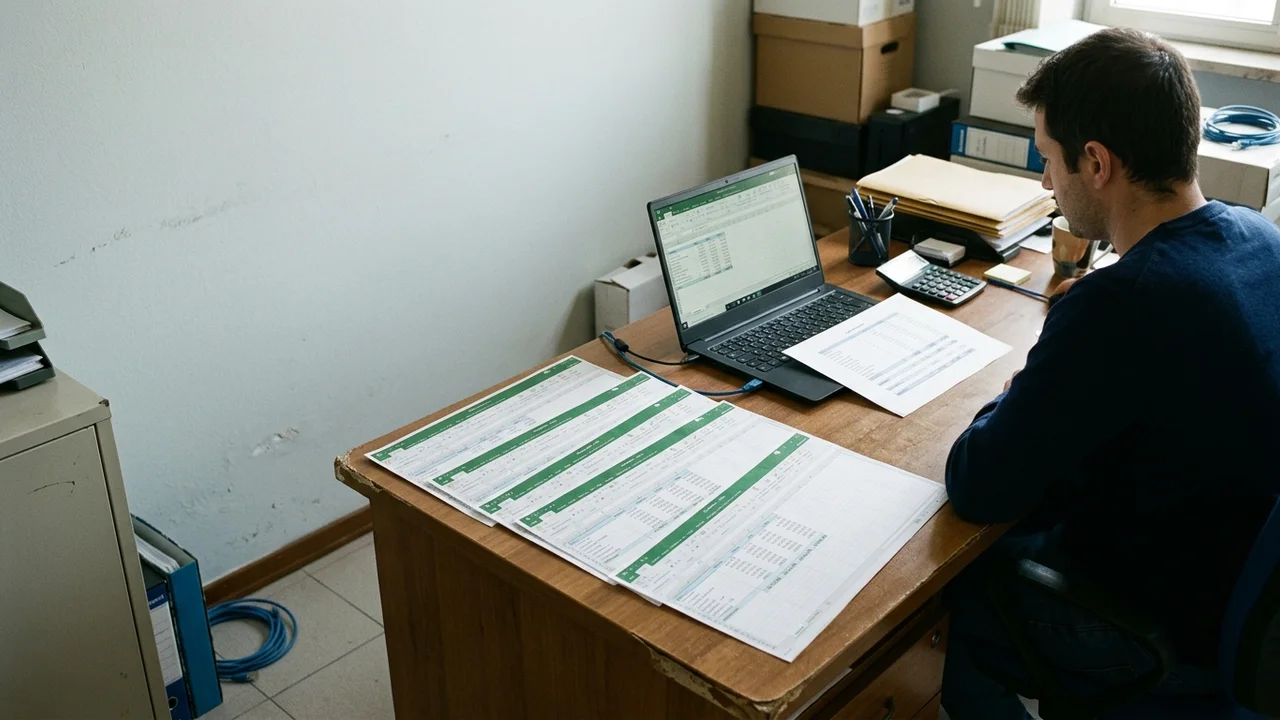
Common errors when merging spreadsheets manually
Values are copied and control formulas are lost. Different months are merged because the file has no period column. Filters are left active and a subset is sent out. A sheet is renamed for tidiness and the link for the following month breaks. The list is mundane, and that is precisely why it keeps repeating. Automation does not eliminate the need for rules. It makes them visible and executes them consistently.
How to get started without overhauling existing processes
Start with the files already in use, automate only the end-of-month bridge, and leave daily work untouched until the checks are stable.
The first goal is not a new system for everyone. It is a report that comes out the same way, on the expected day, with a list of anomalies instead of phone calls. Those with little time in their daily routine can continue recording transactions as they do today. Only the last mile changes: no copying, no file named "final_v3_corrected".
Two precautions prevent the project from stalling at the outset. The first is not expanding the scope: automate the close, not the entire administration. The second is not underestimating the team's attention budget, a topic covered in five budget mistakes that block automation in an SME. A narrow, working bridge beats a broad design that nobody adopts.
How Leomat helps close the month without copying spreadsheets
Leomat designs tailored automations in clean code and, when a management system aligned with real processes is needed, builds an ERP around the company, not the other way around.
The work starts from the ritual that already exists: which files are opened, which exceptions are accepted, who signs off on the figures. From there, a workflow is written that reads those sources and returns the report with visible checks. It is the same spirit with which, for ERP Costruzioni in the construction sector, drafting a quote went from 8 hours to 5 clicks in 30 days: removing hours of repetitive data entry and leaving judgement to the people.
Leomat works with those who want software that actually works, not presentations. For those who want to understand whether the end-of-month bridge is the right starting point, the conversation begins with a discussion about the real process, not a list of features to switch on.
Can you keep Excel and automate only the close?
Yes, and it is often the healthiest approach. The team continues to use their daily working spreadsheets. The automation reads those files, applies the agreed rules, and writes the report. The tool is changed only if, after a few closes, it emerges that a figure is already wrong at the source. Starting from the bridge reduces disruption and makes the value visible from the very first month closed automatically.
How long does it take before the copy-and-paste is gone?
It depends on how many source files exist and how misaligned the column names and codes are. The typical path is to map, fix the rules, test on an already-closed month, compare the totals, then run the current month in parallel. The old method is not switched off on day one. It is switched off when the two outputs match and the anomalies are the expected ones, not surprises.
Does an in-house IT manager need to maintain it?
No, if the rules live in the program and the file paths remain stable. What is needed is a company contact who can flag when an item code has changed or when a new sheet is created. Corrections to the workflow are made by whoever wrote it. For an SME without an IT department, this is the key point: operate the month, do not maintain a tangle of macros.
What is the difference between a macro and a clean-code workflow?
A macro lives inside the file and breaks when someone renames a sheet, inserts a column, or opens the document with a different version. A clean-code workflow lives outside the spreadsheets, reads the sources, logs what it has done, and fails explicitly if a field is missing. It can be versioned, tested on a past month, and corrected without touching the daily work of those who use Excel.
This post was created with AI
Content (text, processing, quotations and images) generated or artificially manipulated by artificial-intelligence systems. Notice provided under the transparency obligations of Article 50 of Regulation (EU) 2024/1689 (AI Act), applicable from 2 August 2026.